Title here
Summary here
The Bitwarden application allows data export. Brennus OTP supports the import of data from Bitwarden.
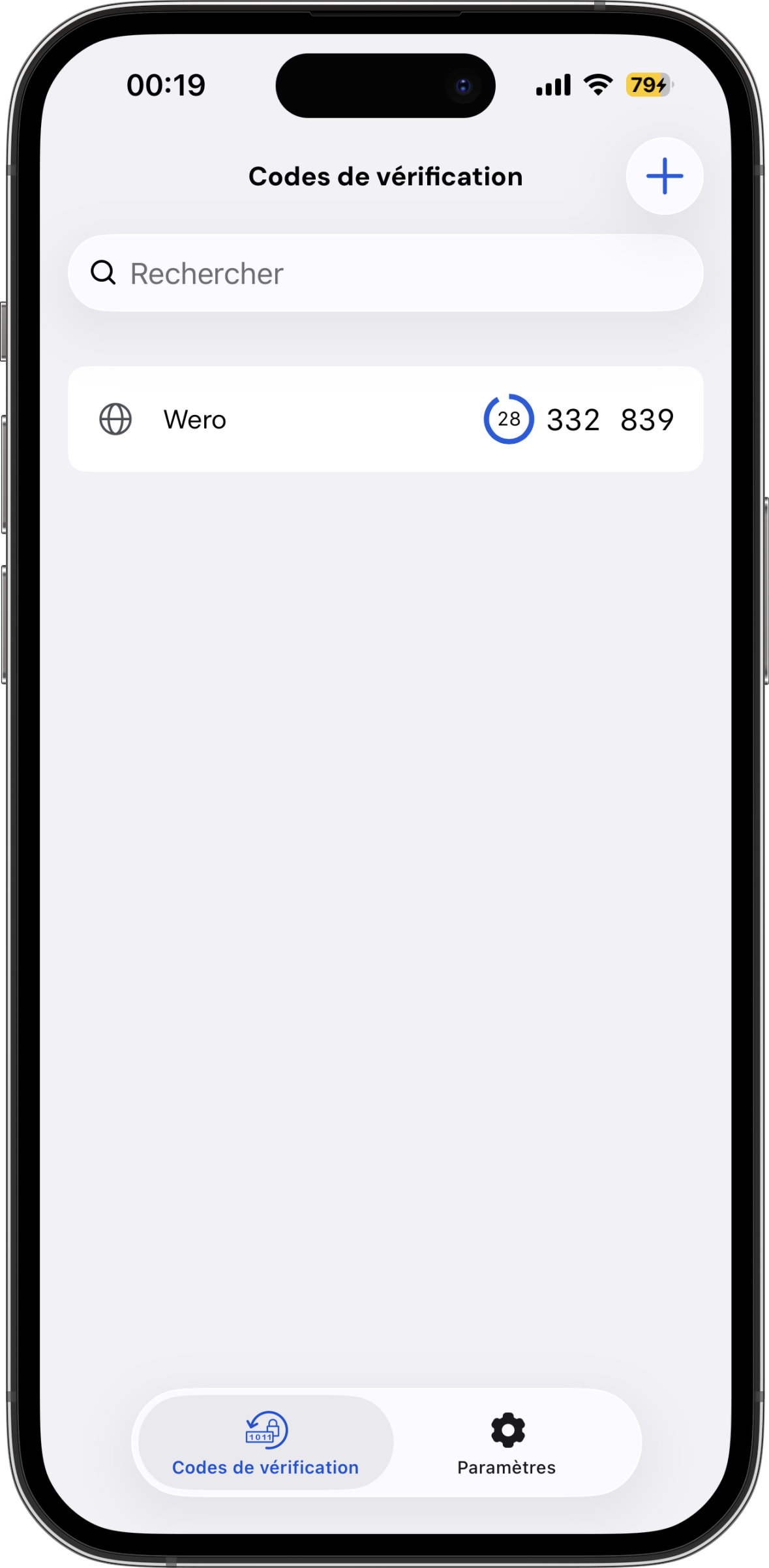
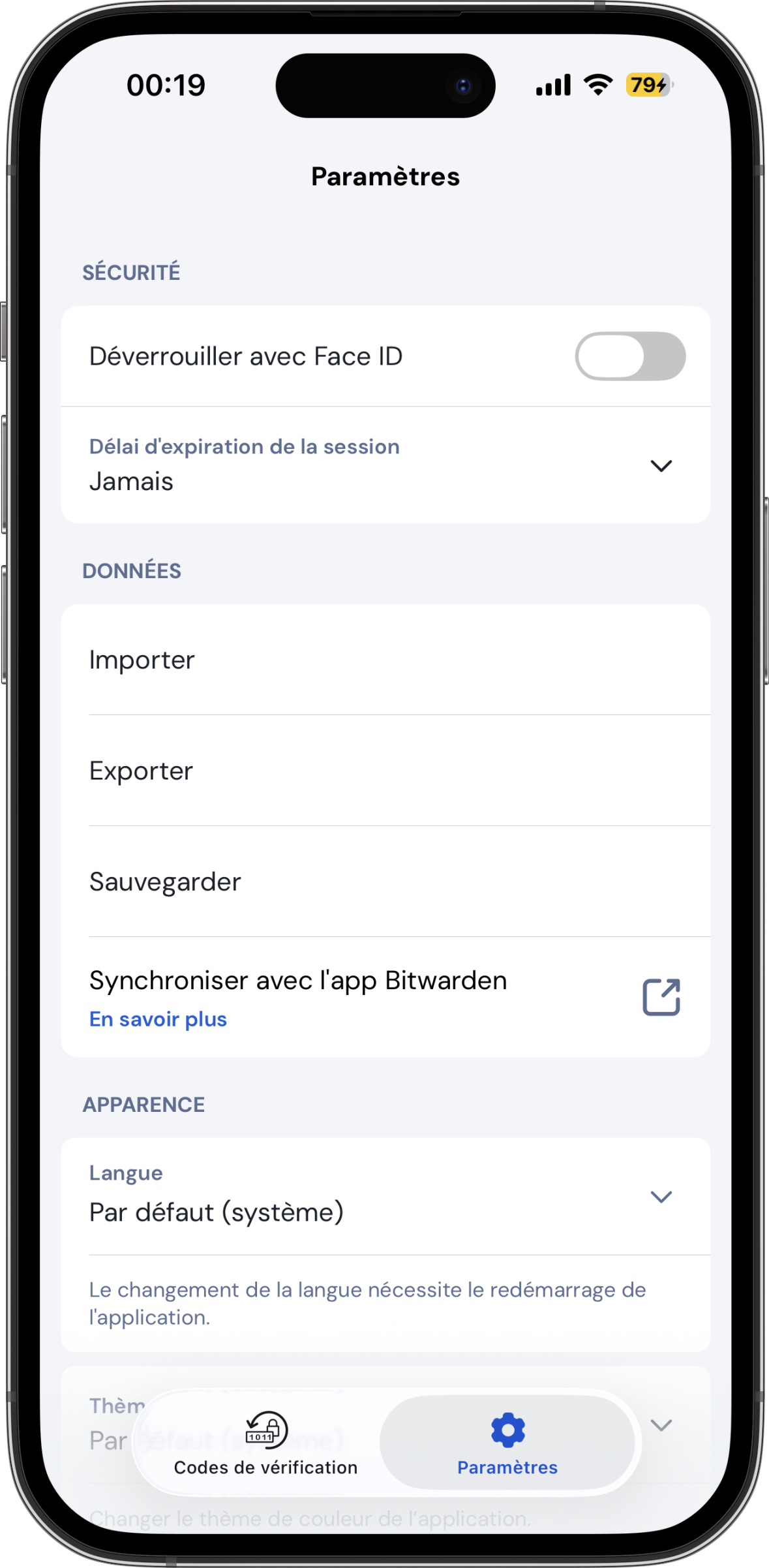
First, go to the Settings tab and select Export:
 ➡️
➡️
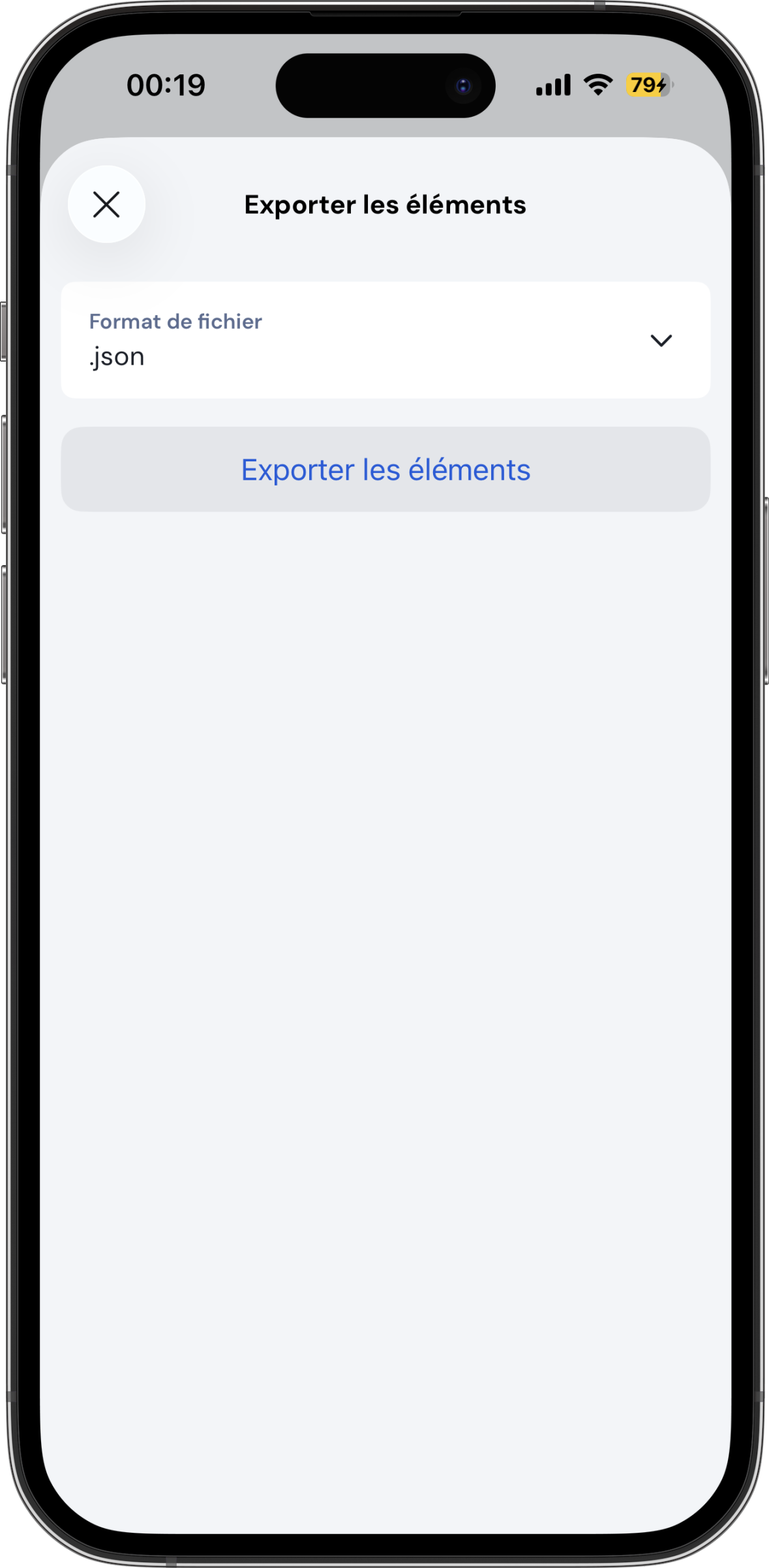
Once in the new menu, select the .json format and save the file:
Caution
Please note that this file is not protected. Store it in a safe place.
To import your data, simply go to the application settings, select the Import Backup menu, and choose Bitwarden from the list of supported applications:
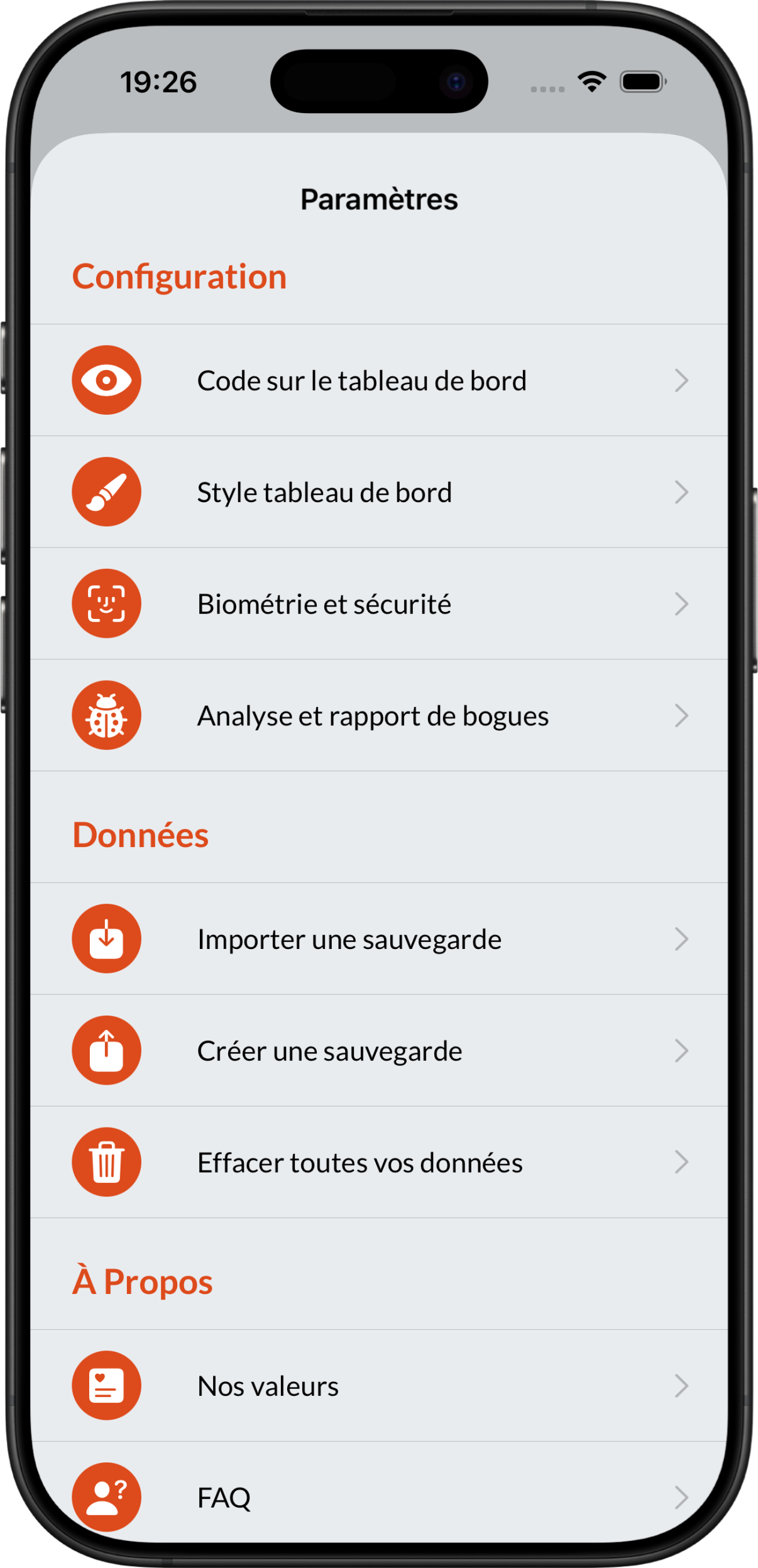 ➡️
➡️
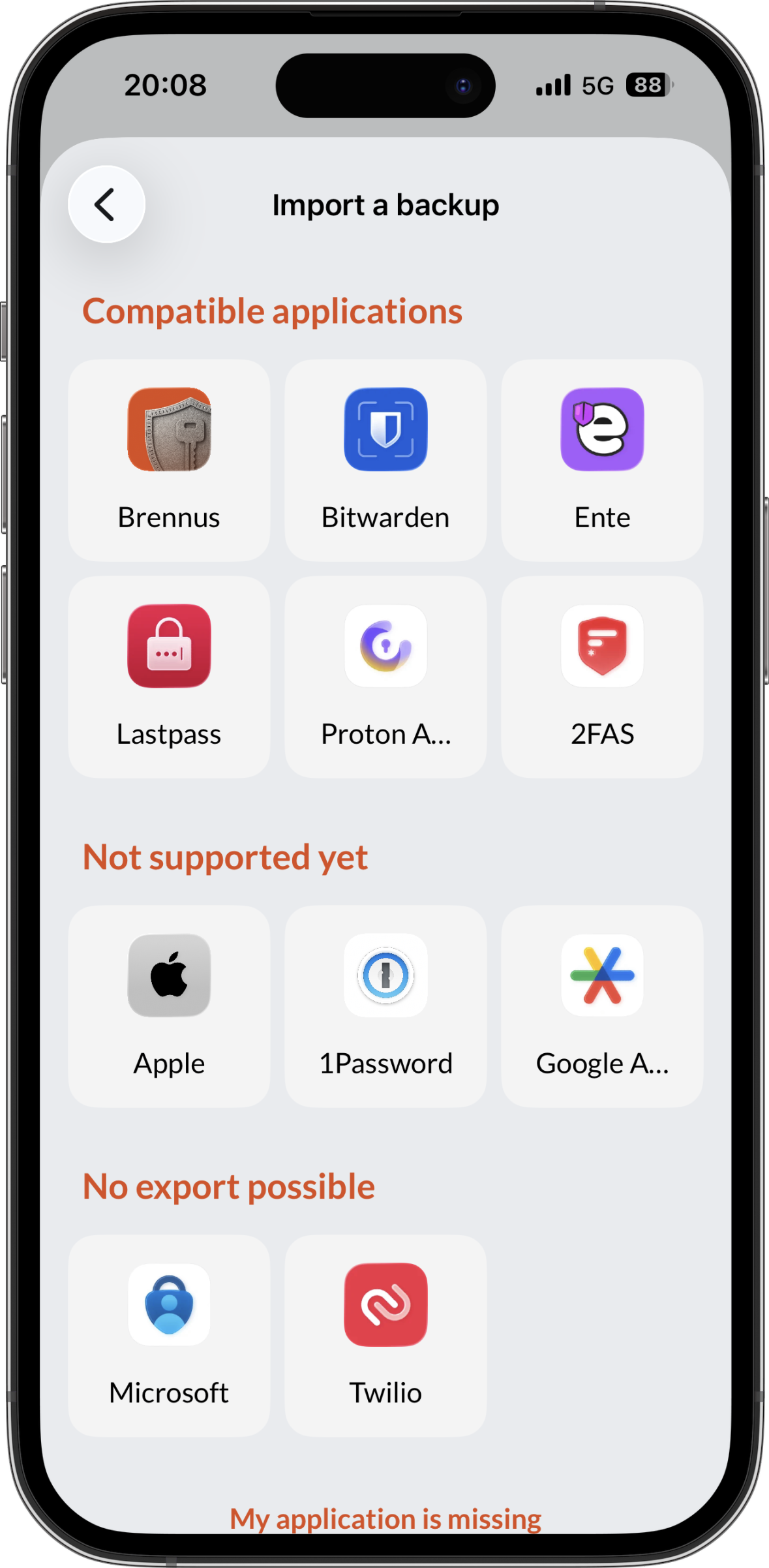
You must then select the file you created earlier:
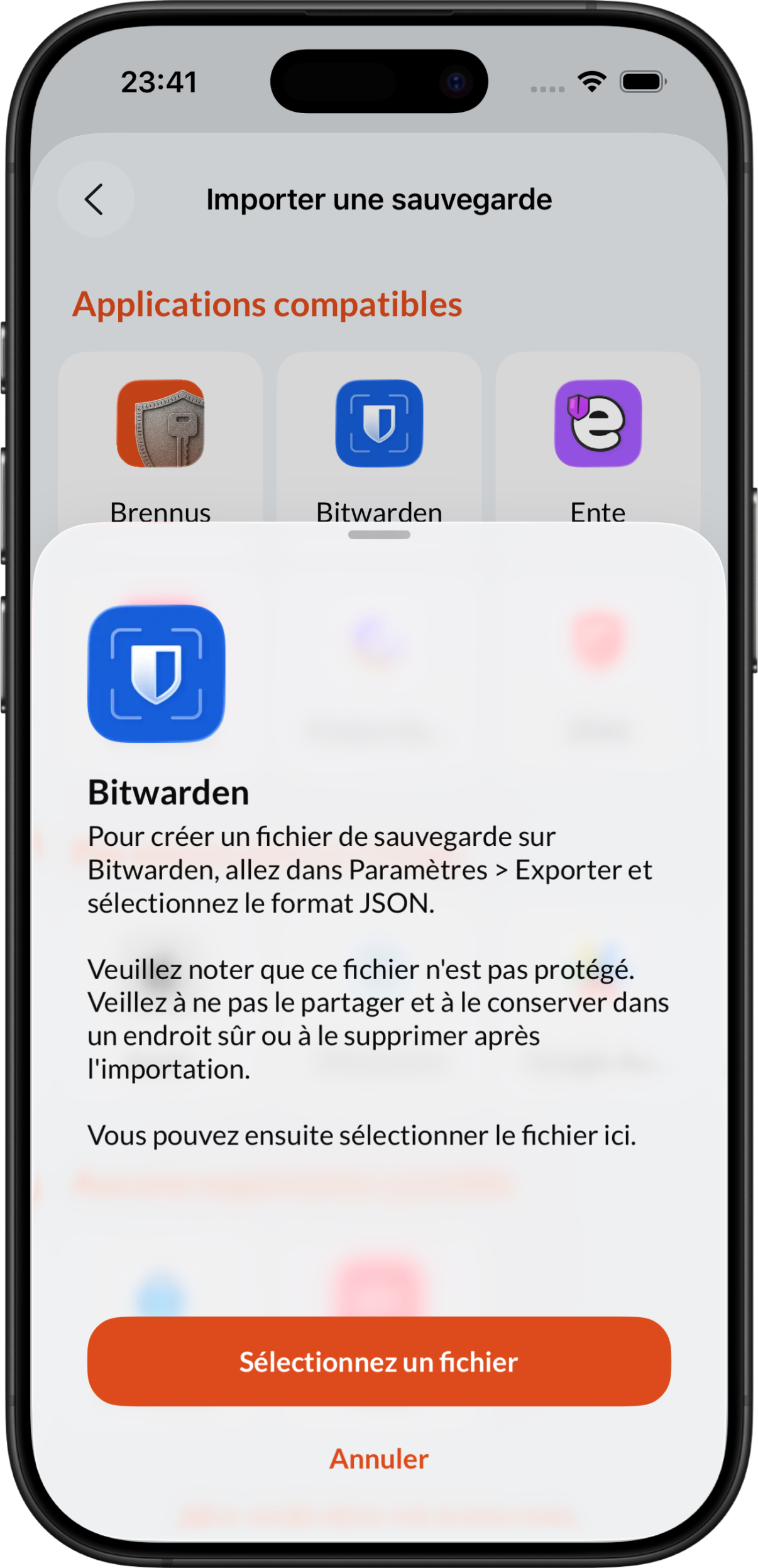 ➡️
➡️
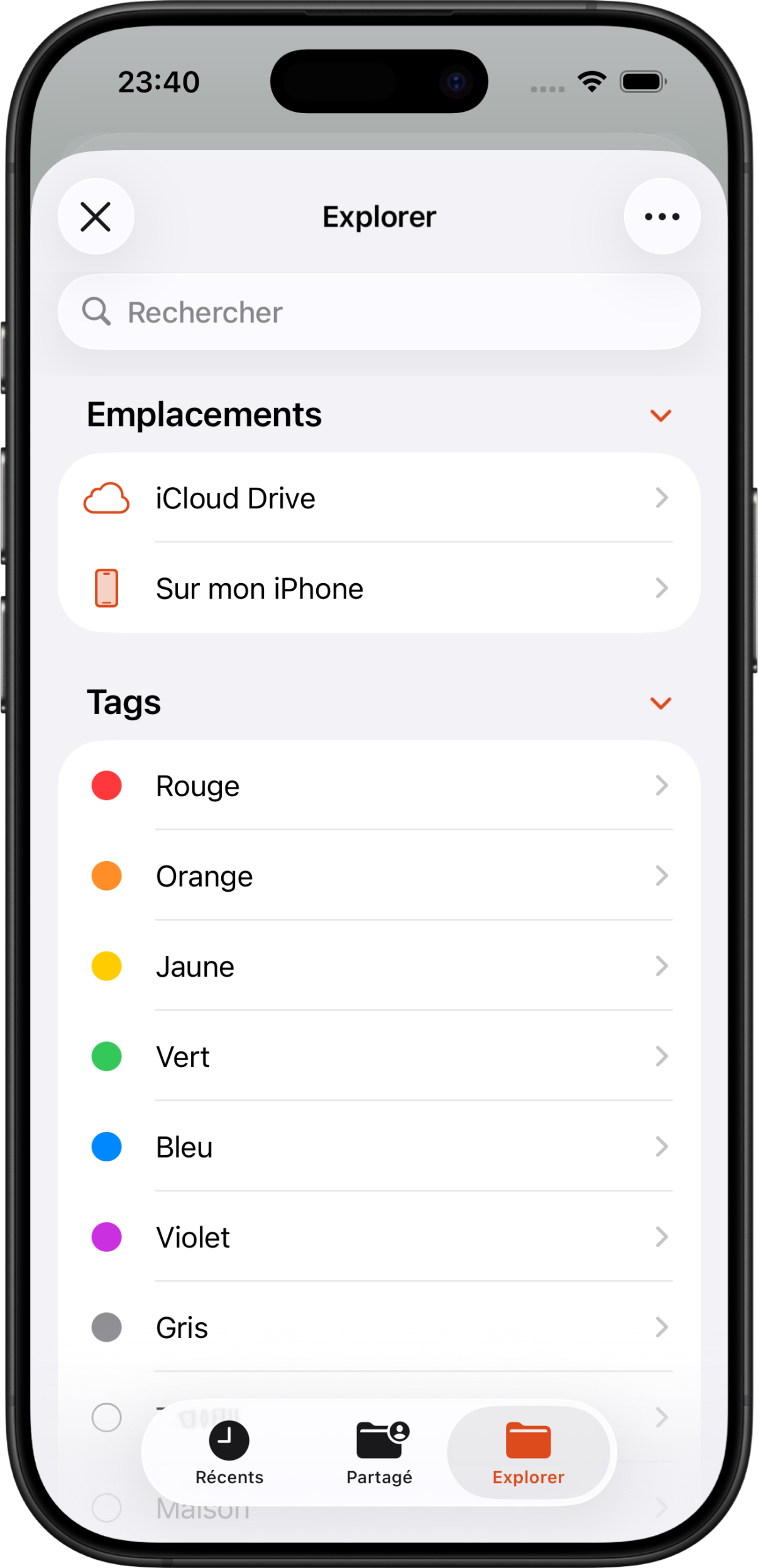
During import, Brennus OTP will automatically create one (or more) vaults for the import you just performed. Each new vault will be prefixed with the name of the import application and the current timestamp.
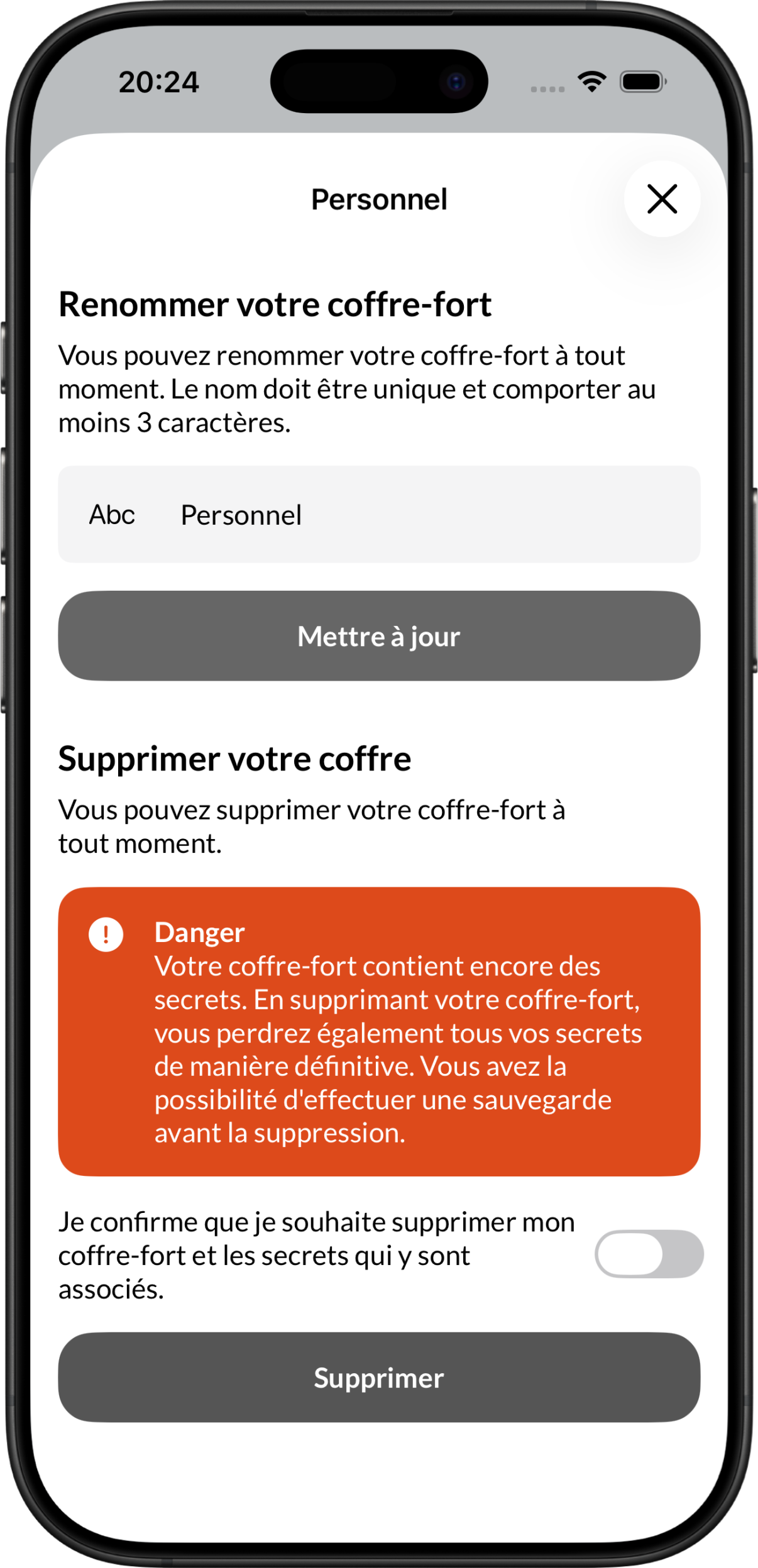
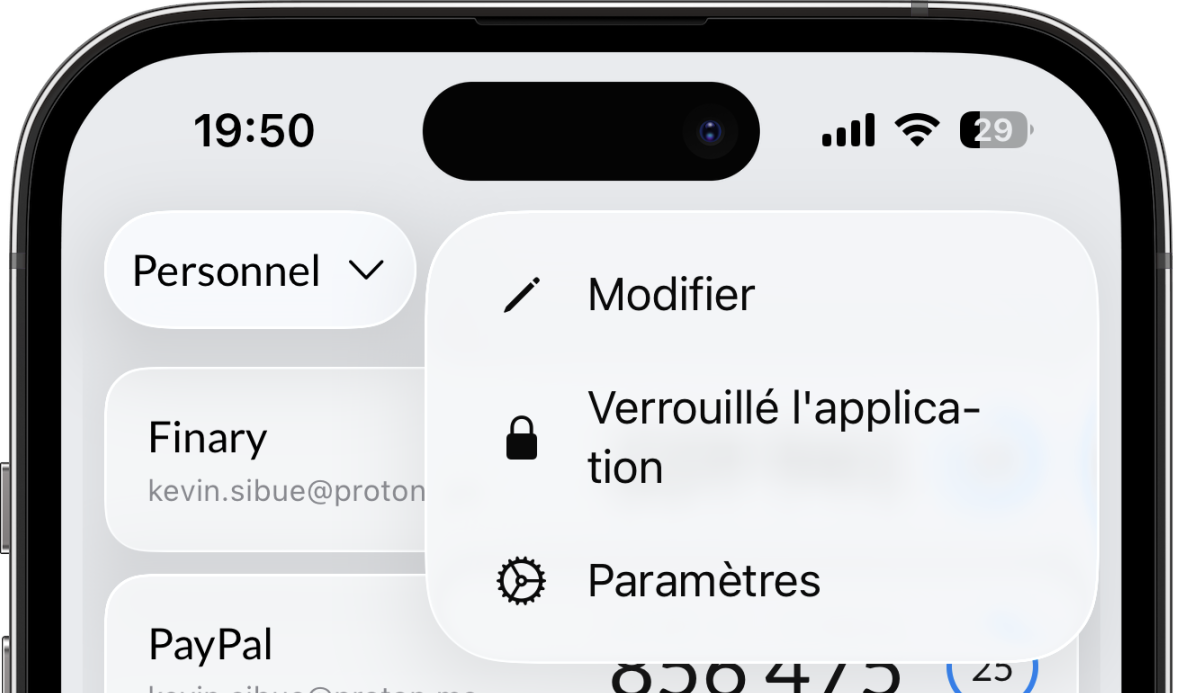
We recommend that you change the name of this/these vault(s).
To do this, you must select this/these new vault(s) and use the Modify action:
 ➡️
➡️