Title here
Summary here
To function correctly, an OTP code requires six pieces of information:
Caution
Never share your OTP code. Anyone with this value could easily retrieve your OTP code.
OTP codes can be generated using three algorithms:
Brennus OTP supports all of these algorithms.
The QR code generally contains the generic otpauth URL used to retrieve the information needed to generate a code.
Brennus OTP supports the otpauth format for QR codes. This format is standardized and looks like this:
otpauth://totp/Brennus:kevin.sibue@account.eu?algorithm=sha1&period=60&digits=10&secret=AZERTYUIOP&issuer=Brennus
Some values are optional, such as the lifetime (period), the number of digits (digits), and the algorithm (algorithm). If these values are not present, Brennus OTP is still able to import the code contained in the QR code.
Each piece of information, whether it be the algorithm, the number of digits, or the lifetime, has default values. If your issuer does not provide you with this information, you can use these values:
| Info | Default value |
|---|---|
| Algorithm | SHA1 |
| Number of digits | 6 |
| Lifetime | 30 |
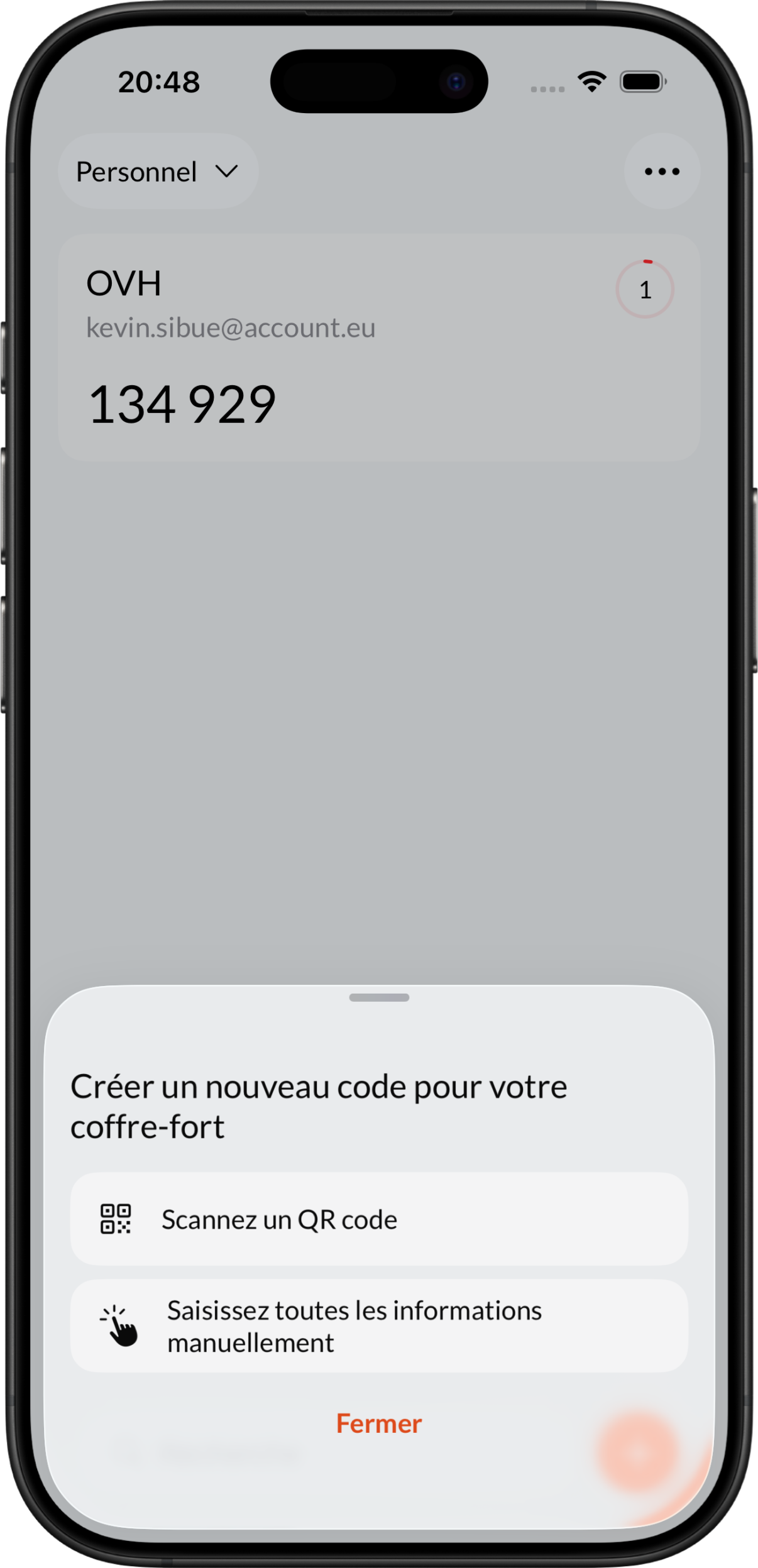
To add a new code, click on the + button at the bottom right of the dashboard. A selection page will then offer you the following options:
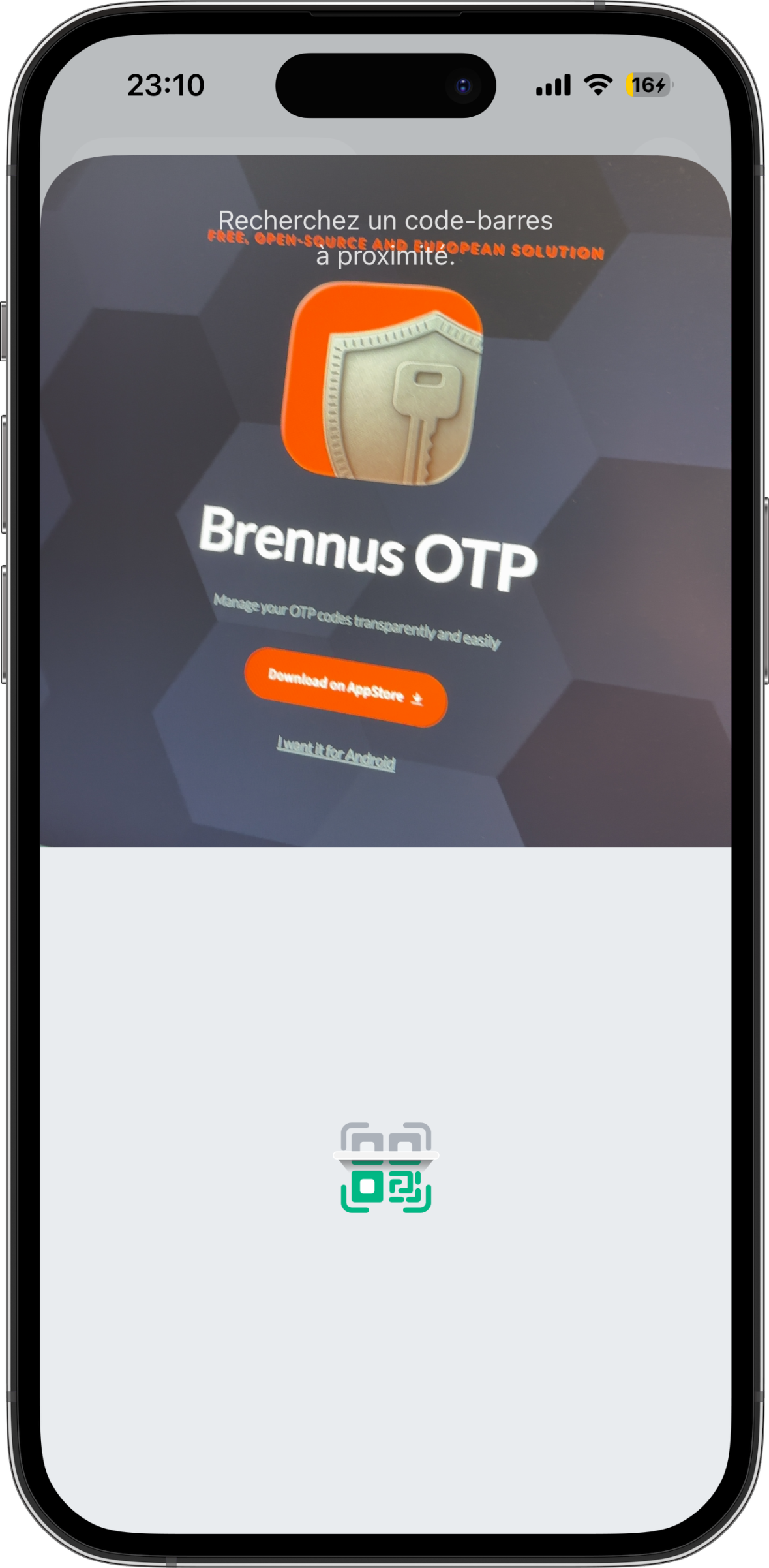
The first option allows you to scan the QR code with your camera:
 ➡️
➡️
Note
To access this feature, you must allow the use of your camera.
Once the QR code has been found by the camera, it will be automatically added to the current vault.
If you are unable to import a QR code, the first thing to do is to check that it is in otpauth format: if this is not the case, Brennus OTP will not be able to import this code.
You will then need to use the information provided by your issuer and manually enter all the data in the form provided for this purpose. You can find more information on how to proceed on this page.